Steps
Open Publishing schedule
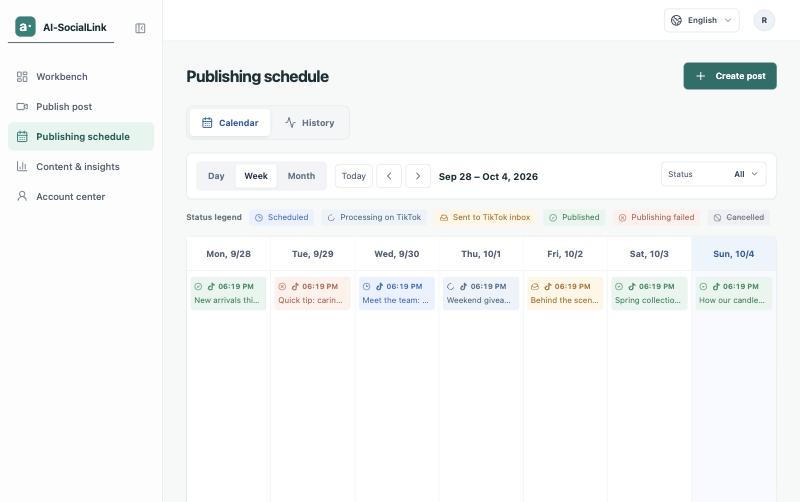
Open Publishing schedule in the sidebar. The calendar shows planned posts; the History list shows every post with its status, and you can filter by account and status.
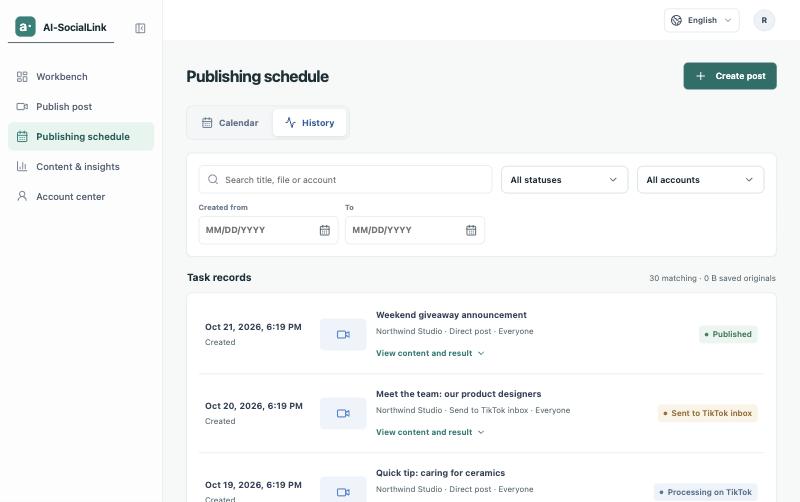
Open a post for its details
Select a post to see what was submitted and a timeline of what happened, including what TikTok reported at each step.
Read the status
These are the statuses and what each one means.
- Scheduled Waiting for the time you chose. Nothing has been sent to TikTok yet. Until sending begins you can use Cancel schedule.
- Queued to send The video is saved and waiting to be sent to TikTok. You can still cancel it before sending begins.
- Sending video The video is being transferred to TikTok. Wait for it to finish and do not submit it again.
- Processing on TikTok TikTok has the video and is processing it. This can take a few minutes. Check Publishing history for the final result.
- Sent to TikTok inbox TikTok reported delivery to the in-app Inbox of the connected account. It is not published yet: open the TikTok app on that account, finish editing and publish it there.
- Published TikTok confirmed the post. Nothing more to do.
- Verify result TikTok has not confirmed the final result, or the submission result could not be confirmed. Check the video in TikTok before sending it again.
- Publishing failed The post was not completed. Open the post details for the reason and follow the matching advice below.
- Cancelled Cancelled before sending began. Nothing was sent to TikTok.
If a post failed, follow the advice for the reason
The post details give a plain-language reason. Match it to one of these.
- The scheduled time was missed The video was not sent to TikTok. Schedule it again.
- The TikTok account was disconnected, or the connection expired Reconnect the account in Account center → Social accounts, then try again.
- The account has not granted a required permission Reconnect the account so the requested access can be granted again.
- TikTok did not accept the video format, size or length Choose another video that fits the account’s limits and try again.
- The account posted too often, or TikTok is rate limiting Wait a while before trying again.
- TikTok will not let the account post right now Check the account’s status in TikTok.
- Any other failure Check the video and account settings (visibility, interactions, disclosure), then try again. If it keeps happening, contact support.
If the result is uncertain, check TikTok first
For “Verify result”, open the connected account in TikTok and see whether the video is there before sending it again, otherwise you may create a duplicate.